> ## Documentation Index
> Fetch the complete documentation index at: https://help.sundevs.net/llms.txt
> Use this file to discover all available pages before exploring further.
# Home / Playground
> Create, configure, save and share pastes from the main page (/).
This is the main page most users will use.
## What this page is for
Use `/` to:
* Paste or type content
* Let the editor detect the language
* Choose sharing and privacy options
* Save the paste
* Open a share dialog
* Get a QR code after saving
## Layout
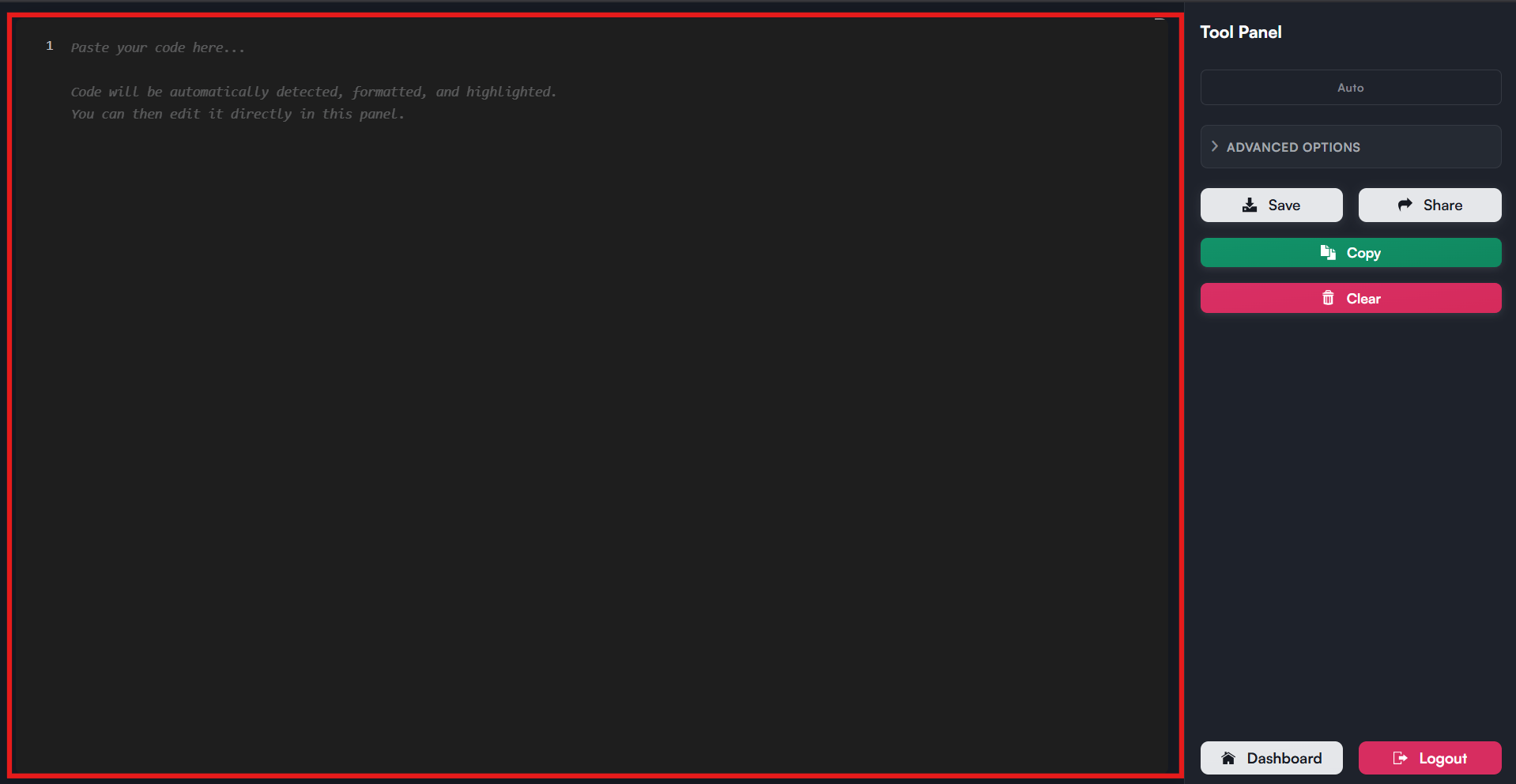
The page is split into two parts:
* A large editor on the left
* A tool panel on the right
On small screens, the tool panel becomes a slide-out panel opened from the menu (hamburger) button.
 ## Editor behavior
The editor:
* Tracks your current text live
* Tries to auto-detect the language
* Shows line numbers
* Formats code where appropriate
* Intercepts `Ctrl+S` / `Cmd+S` so the browser does not open "Save As"
* Stores an unsaved draft in your browser's local storage (only for content up to 4 KB)
If the browser finds a saved draft from the same machine and browser profile, SunPaste restores it and shows a short recovery notification.
## Tool panel
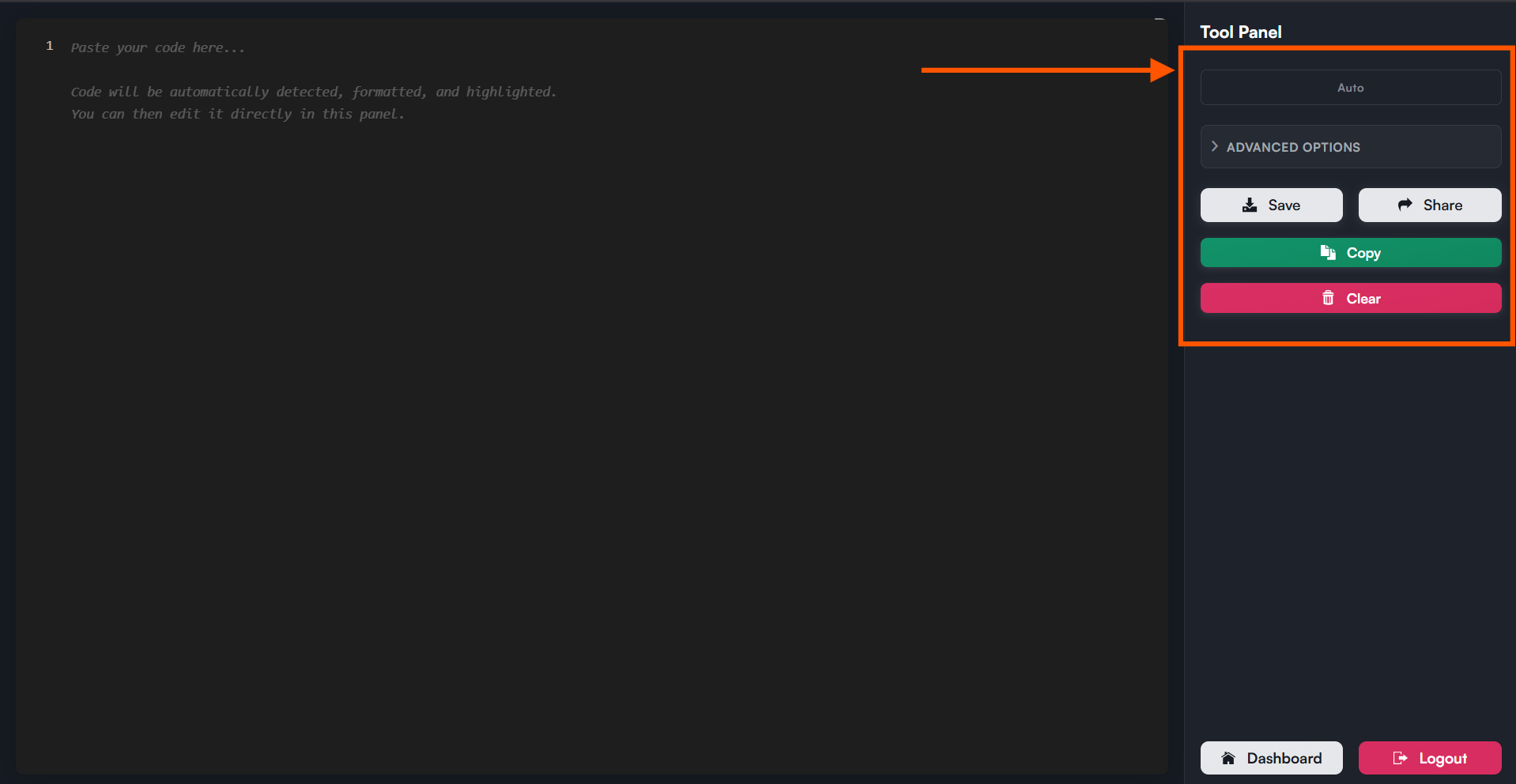
The tool panel contains:
* A language badge
* "Advanced Options"
* `Save` and `Share` buttons
* `Copy` and `Clear` buttons
* Login or dashboard/logout buttons at the bottom
## Editor behavior
The editor:
* Tracks your current text live
* Tries to auto-detect the language
* Shows line numbers
* Formats code where appropriate
* Intercepts `Ctrl+S` / `Cmd+S` so the browser does not open "Save As"
* Stores an unsaved draft in your browser's local storage (only for content up to 4 KB)
If the browser finds a saved draft from the same machine and browser profile, SunPaste restores it and shows a short recovery notification.
## Tool panel
The tool panel contains:
* A language badge
* "Advanced Options"
* `Save` and `Share` buttons
* `Copy` and `Clear` buttons
* Login or dashboard/logout buttons at the bottom
 ## Advanced Options
### Visibility
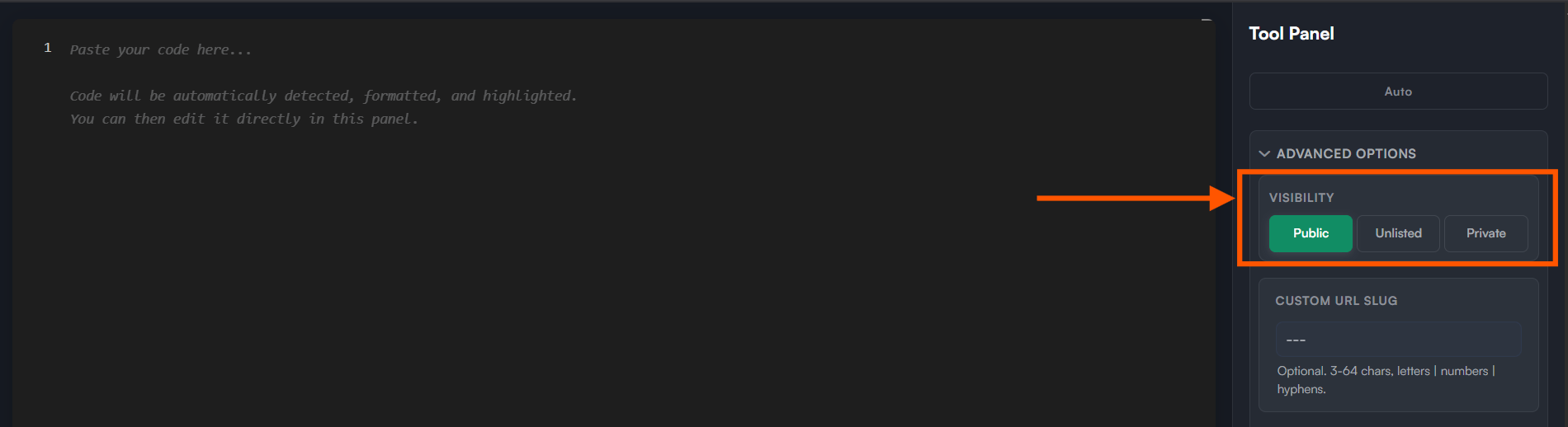
You can choose `Public`, `Unlisted` or `Private`.
When you choose Private:
* If you are logged in, the next paste is saved as private
* If you are not logged in, SunPaste warns you and switches the choice to Unlisted
If playground private mode is enabled, the hint text tells you that all shared links require login.
## Advanced Options
### Visibility
You can choose `Public`, `Unlisted` or `Private`.
When you choose Private:
* If you are logged in, the next paste is saved as private
* If you are not logged in, SunPaste warns you and switches the choice to Unlisted
If playground private mode is enabled, the hint text tells you that all shared links require login.
 ### Custom URL slug
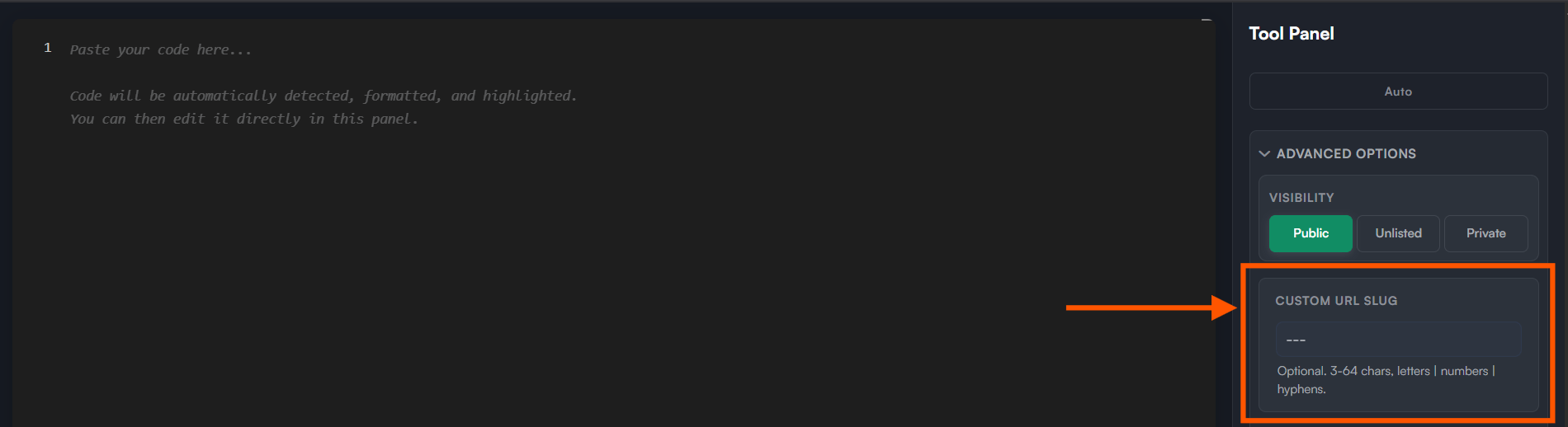
Use this when you want a human-readable URL instead of a random 8-character slug.
Rules:
* Optional field
* `3` to `64` characters
* Letters, numbers, and hyphens only
If the slug is already taken, the save is rejected, the field is marked invalid, and a notification asks you to choose another slug.
### Custom URL slug
Use this when you want a human-readable URL instead of a random 8-character slug.
Rules:
* Optional field
* `3` to `64` characters
* Letters, numbers, and hyphens only
If the slug is already taken, the save is rejected, the field is marked invalid, and a notification asks you to choose another slug.
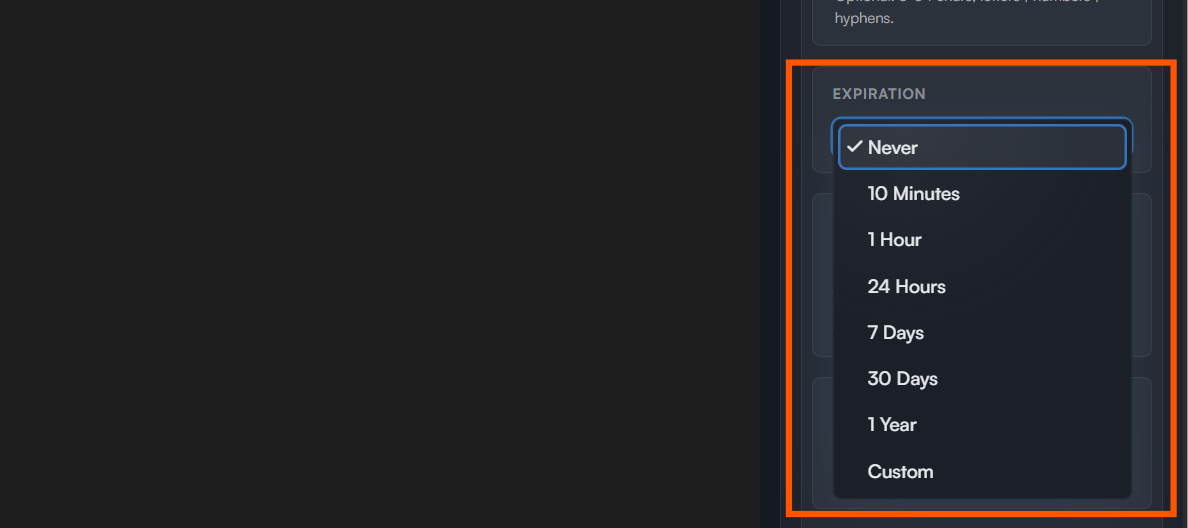
 ### Expiration
Options: `Never`, `10 Minutes`, `1 Hour`, `24 Hours`, `7 Days`, `30 Days`, `1 Year`, `Custom`.
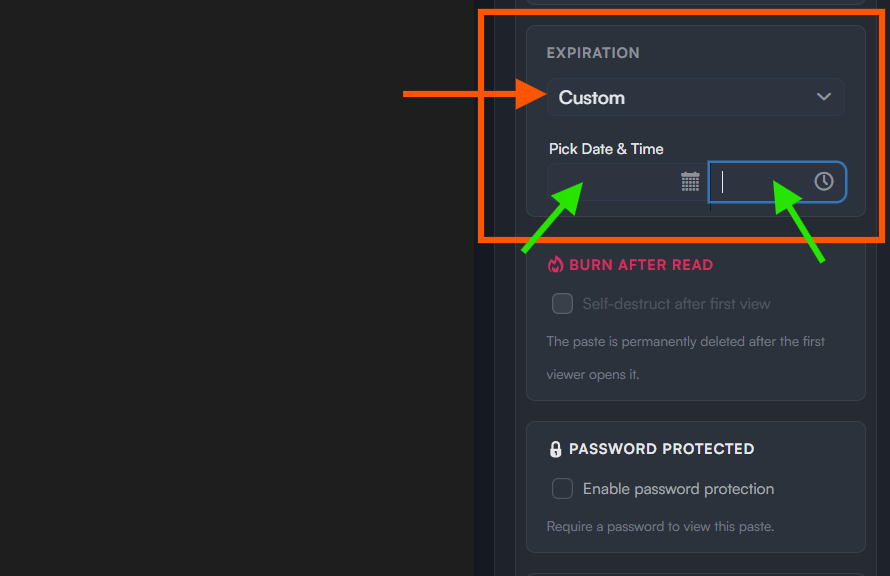
If you choose `Custom`, a date/time picker appears and you must choose a future value.
When the paste reaches its expiration time:
* The viewer page shows an expired state
* API endpoints return `410 Gone`
### Expiration
Options: `Never`, `10 Minutes`, `1 Hour`, `24 Hours`, `7 Days`, `30 Days`, `1 Year`, `Custom`.
If you choose `Custom`, a date/time picker appears and you must choose a future value.
When the paste reaches its expiration time:
* The viewer page shows an expired state
* API endpoints return `410 Gone`
 ### Burn After Read
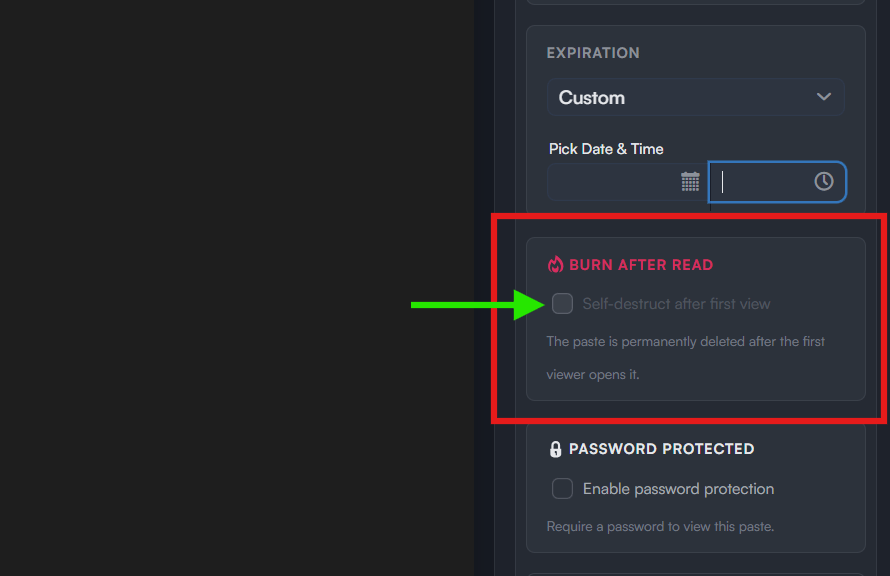
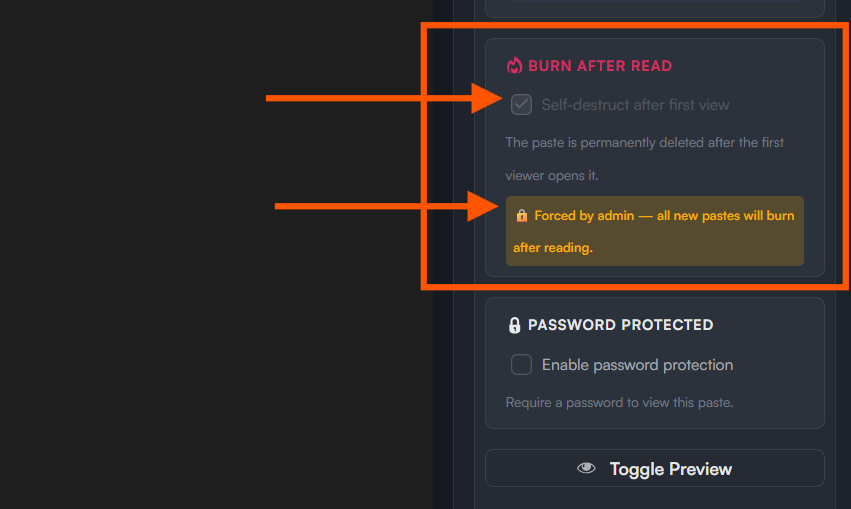
This toggle is labeled `Self-destruct after first view`.
* The first viewer sees a warning page
* Once they confirm, the content is shown
* The paste is permanently deleted after that view
How this interacts with expiration:
* Burn-after-read and timed expiration are mutually exclusive in the UI
* Turning burn-after-read on disables the expiration controls
* Choosing an expiration other than `Never` turns the burn toggle off, unless burn is forced globally by admin settings
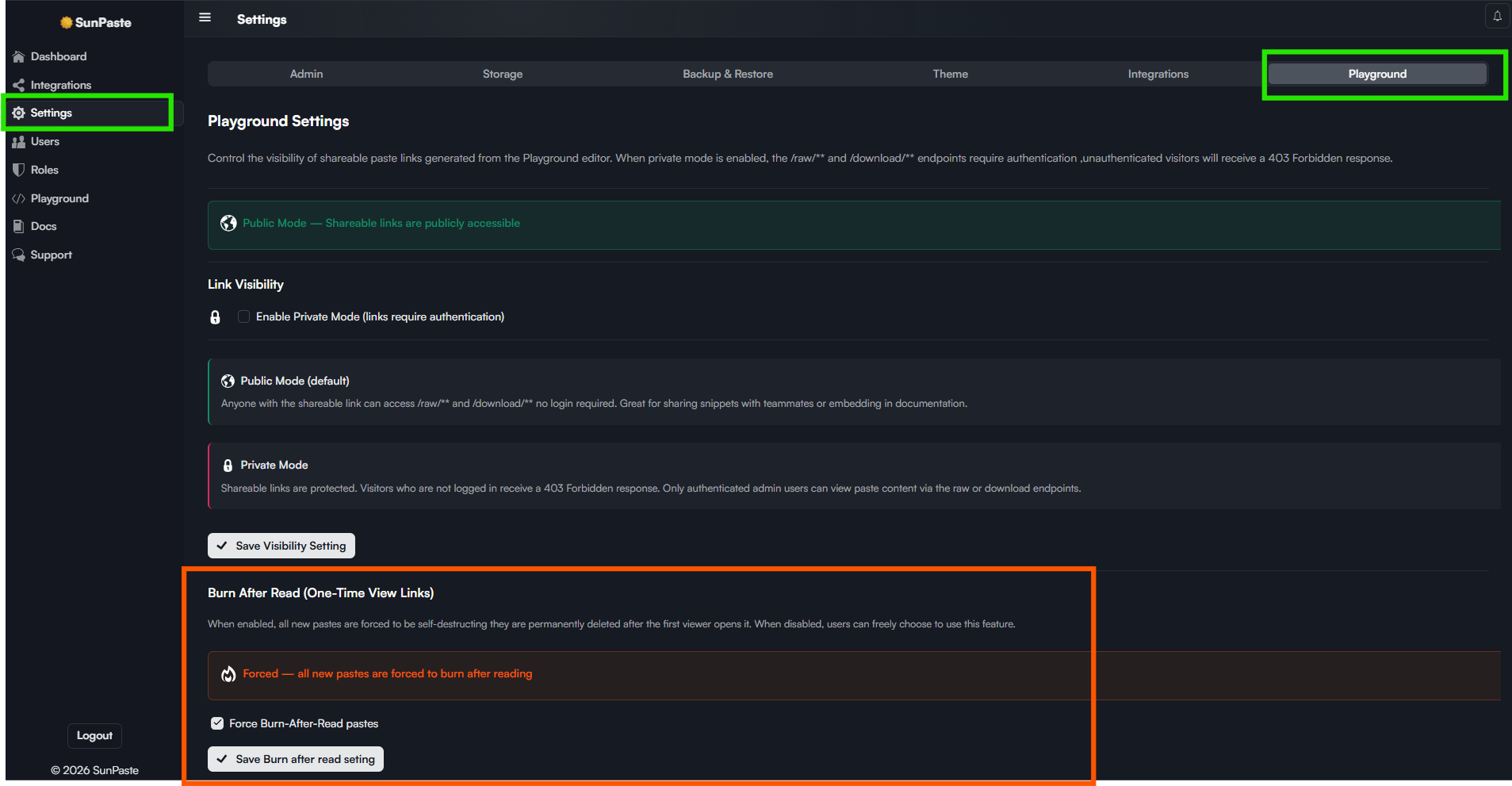
If the admin forced burn-after-read for all new pastes, this toggle stays on and cannot be disabled.
### Burn After Read
This toggle is labeled `Self-destruct after first view`.
* The first viewer sees a warning page
* Once they confirm, the content is shown
* The paste is permanently deleted after that view
How this interacts with expiration:
* Burn-after-read and timed expiration are mutually exclusive in the UI
* Turning burn-after-read on disables the expiration controls
* Choosing an expiration other than `Never` turns the burn toggle off, unless burn is forced globally by admin settings
If the admin forced burn-after-read for all new pastes, this toggle stays on and cannot be disabled.
 ### Password protection
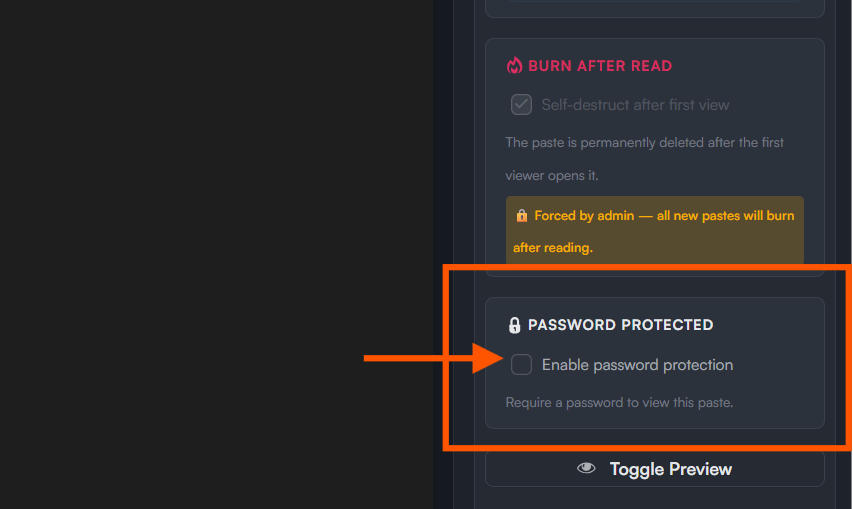
This toggle is labeled `Enable password protection`. When you save or share with it enabled:
* A password dialog appears
* You must enter a password before the paste is created
* The password must be at least 6 characters and contain both letters and numbers
Viewers must enter the same password before they can see the paste.
### Password protection
This toggle is labeled `Enable password protection`. When you save or share with it enabled:
* A password dialog appears
* You must enter a password before the paste is created
* The password must be at least 6 characters and contain both letters and numbers
Viewers must enter the same password before they can see the paste.
 ### Preview toggle
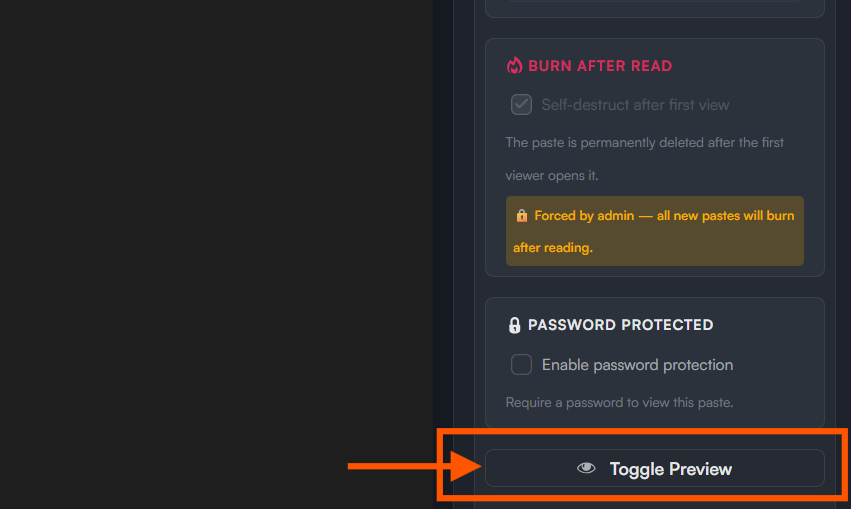
The preview button switches the editor between raw source and preview mode. Preview is useful for Markdown, HTML, JSON and CSV. For other languages, the component may say preview is not available and ask you to show the raw source instead.
### Preview toggle
The preview button switches the editor between raw source and preview mode. Preview is useful for Markdown, HTML, JSON and CSV. For other languages, the component may say preview is not available and ask you to show the raw source instead.
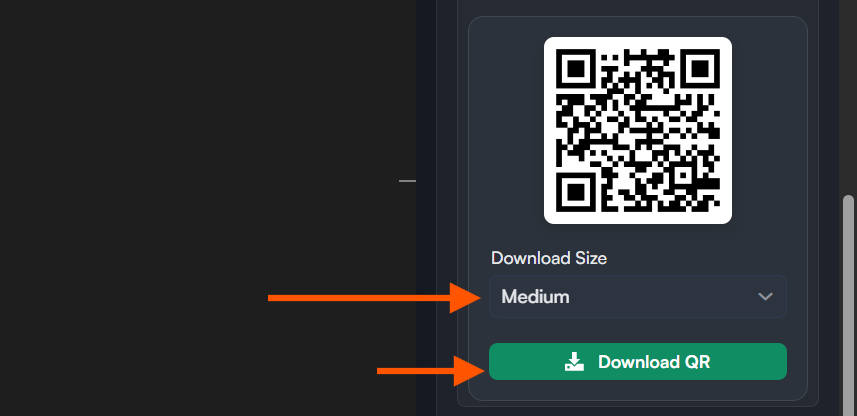
 ### QR code area
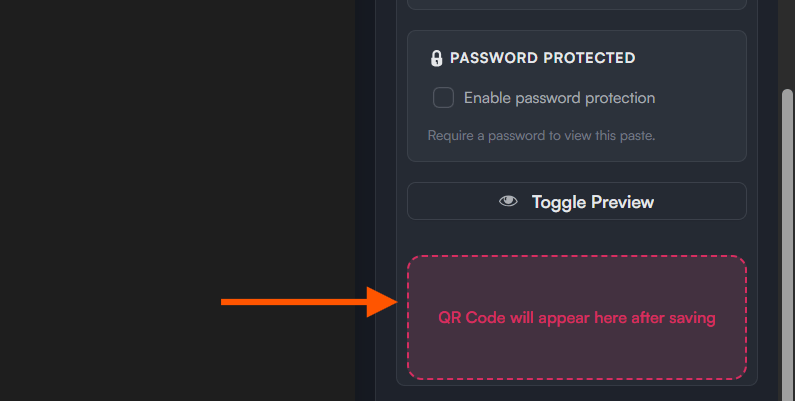
Before you save, this area shows a placeholder. After you save successfully:
* A QR preview appears
* You can choose `Small`, `Medium`, or `Large`
* You can download the QR code image for the last saved paste
### QR code area
Before you save, this area shows a placeholder. After you save successfully:
* A QR preview appears
* You can choose `Small`, `Medium`, or `Large`
* You can download the QR code image for the last saved paste
 ## Main buttons
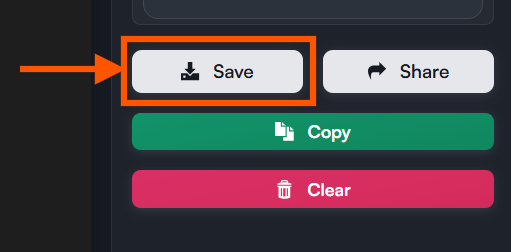
### Save (`Ctrl + S`)
When you click `Save`:
1. SunPaste reads the current editor content.
2. If password protection is enabled, it first asks you for the password.
3. The paste is created.
4. The QR preview is updated.
5. The browser address bar changes to `/view/{slug}` even though you stay on the editor page.
6. A notification appears.
Save notifications depend on the result:
* Normal save: success notification showing the visibility type
* Burn-after-read save: warning notification explaining it is a one-time paste
* No content: warning notification
* Invalid custom slug: field error and notification
* Size limit exceeded: error notification with the actual and allowed size
If you click Save again without changing anything important, SunPaste reuses the already-saved paste instead of creating a duplicate.
## Main buttons
### Save (`Ctrl + S`)
When you click `Save`:
1. SunPaste reads the current editor content.
2. If password protection is enabled, it first asks you for the password.
3. The paste is created.
4. The QR preview is updated.
5. The browser address bar changes to `/view/{slug}` even though you stay on the editor page.
6. A notification appears.
Save notifications depend on the result:
* Normal save: success notification showing the visibility type
* Burn-after-read save: warning notification explaining it is a one-time paste
* No content: warning notification
* Invalid custom slug: field error and notification
* Size limit exceeded: error notification with the actual and allowed size
If you click Save again without changing anything important, SunPaste reuses the already-saved paste instead of creating a duplicate.
 ### Share
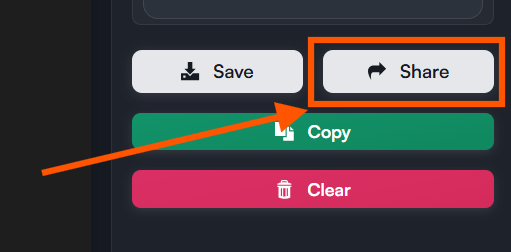
When you click `Share`, SunPaste saves first, then opens a share dialog. The dialog always shows the browser view URL and a copy button.
The raw URL is only shown when all of these are true:
* The paste is not private
* The paste is not password-protected
* Playground private mode is off
### Share
When you click `Share`, SunPaste saves first, then opens a share dialog. The dialog always shows the browser view URL and a copy button.
The raw URL is only shown when all of these are true:
* The paste is not private
* The paste is not password-protected
* Playground private mode is off
 ### Copy
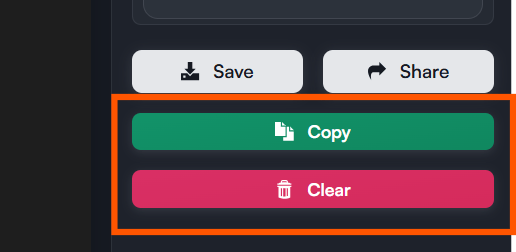
`Copy` copies the current editor content to your clipboard.
### Clear
`Clear` resets:
* The editor's content
* The detected language
* Visibility back to Public
* Burn-after-read back to off
* Password protection back to off
* Expiration back to Never
* Custom slug
* The QR panel back to its placeholder state
### Copy
`Copy` copies the current editor content to your clipboard.
### Clear
`Clear` resets:
* The editor's content
* The detected language
* Visibility back to Public
* Burn-after-read back to off
* Password protection back to off
* Expiration back to Never
* Custom slug
* The QR panel back to its placeholder state
 ## Bottom buttons
If you are not logged in, the page shows `Login`. If you are logged in, it shows `Dashboard` and `Logout`.
* If playground private mode is enabled and you are anonymous, the page blocks saving/sharing and asks you to log in.
* Anonymous users cannot save private pastes.
* Public and Unlisted currently behave almost the same for direct-link access in the UI.
* QR codes are generated for each saved paste in three sizes.
## Bottom buttons
If you are not logged in, the page shows `Login`. If you are logged in, it shows `Dashboard` and `Logout`.
* If playground private mode is enabled and you are anonymous, the page blocks saving/sharing and asks you to log in.
* Anonymous users cannot save private pastes.
* Public and Unlisted currently behave almost the same for direct-link access in the UI.
* QR codes are generated for each saved paste in three sizes.
 ## Related topics
- [SunPaste](/sunpaste/overview.md)
- [Settings](/sunpaste/admin/settings.md)
- [Core Concepts](/sunpaste/core-concepts.md)
- [Dashboard](/sunpaste/admin/dashboard.md)
- [The Dashboard](/sunlinks/dashboard/overview.md)
## Related topics
- [SunPaste](/sunpaste/overview.md)
- [Settings](/sunpaste/admin/settings.md)
- [Core Concepts](/sunpaste/core-concepts.md)
- [Dashboard](/sunpaste/admin/dashboard.md)
- [The Dashboard](/sunlinks/dashboard/overview.md)