> ## Documentation Index
> Fetch the complete documentation index at: https://help.sundevs.net/llms.txt
> Use this file to discover all available pages before exploring further.
# Login
> Sign in to SunPaste and reset the admin password.
Use `/login` to sign in to SunPaste.
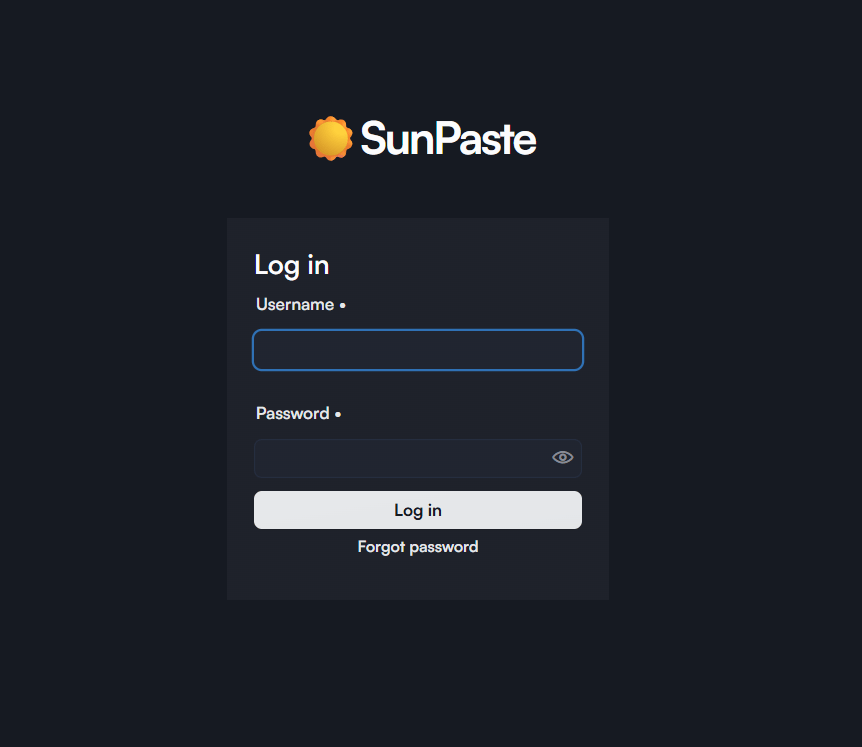 The page contains:
* The site/application name
* A standard username/password login form
* A `Forgot password` link
## Default admin credentials
On a clean setup, the defaults are:
* Username: `admin`
* Password: `admin`
Change these immediately from `Settings -> Admin`.
## After login
By default, a successful login sends you to `/dashboard`. If you were trying to open a protected paste before logging in, SunPaste redirects you back to it instead.
## Forgot password flow
The built-in password reset flow is only for the settings-based admin account.
1. Click `Forgot password`.
2. Enter the admin username.
3. SunPaste generates a 6-digit code.
4. The code is written to the server logs.
5. The code is valid for 5 minutes.
6. You get up to 5 attempts to enter it.
7. After successful verification, you set the new password.
This flow does not send an email. The reset code is logged server-side for the operator to use.
## What this page does not include
* There is no public registration form.
* New users must be created from [`/admin/users`](/sunpaste/admin/user-management).
## Related topics
- [Paste Viewer](/sunpaste/core-concepts/paste-view.md)
- [Settings](/sunpaste/admin/settings.md)
- [Core Concepts](/sunpaste/core-concepts.md)
- [SunPaste](/sunpaste/overview.md)
- [Home / Playground](/sunpaste/core-concepts/home-page.md)
The page contains:
* The site/application name
* A standard username/password login form
* A `Forgot password` link
## Default admin credentials
On a clean setup, the defaults are:
* Username: `admin`
* Password: `admin`
Change these immediately from `Settings -> Admin`.
## After login
By default, a successful login sends you to `/dashboard`. If you were trying to open a protected paste before logging in, SunPaste redirects you back to it instead.
## Forgot password flow
The built-in password reset flow is only for the settings-based admin account.
1. Click `Forgot password`.
2. Enter the admin username.
3. SunPaste generates a 6-digit code.
4. The code is written to the server logs.
5. The code is valid for 5 minutes.
6. You get up to 5 attempts to enter it.
7. After successful verification, you set the new password.
This flow does not send an email. The reset code is logged server-side for the operator to use.
## What this page does not include
* There is no public registration form.
* New users must be created from [`/admin/users`](/sunpaste/admin/user-management).
## Related topics
- [Paste Viewer](/sunpaste/core-concepts/paste-view.md)
- [Settings](/sunpaste/admin/settings.md)
- [Core Concepts](/sunpaste/core-concepts.md)
- [SunPaste](/sunpaste/overview.md)
- [Home / Playground](/sunpaste/core-concepts/home-page.md)