

Step 1: Purchase and download server.jar
1
Visit the SunPaste resource page
Go to the SunPaste resource page to purchase your license. See Where to buy for other marketplaces.
2
Choose a payment method
You can pay with PayPal, Credit/Debit Card or Cryptocurrency. All payments are processed securely through Tebex.
3
Download the server.jar file
Once your purchase is complete, you can download the
server.jar file.While purchasing the license, you can also add Managed Hosting. With this add-on, we manage and host your server, and you don’t need to do anything beyond this step.
Step 2: Request a license key
Join our Discord server, go to the #premium channel and click Request License. A developer will send you your license key shortly. See Get your license key.Step 3: Import SunLicenseEggShell to Pterodactyl
Download egg-generic-java.json
SunLicenseEggShell (Generic Java Egg)
1
Download the SunLicenseEggShell
Download the egg file from the link above.
2
Go to your Pterodactyl admin dashboard
Log in to your Pterodactyl admin panel.
3
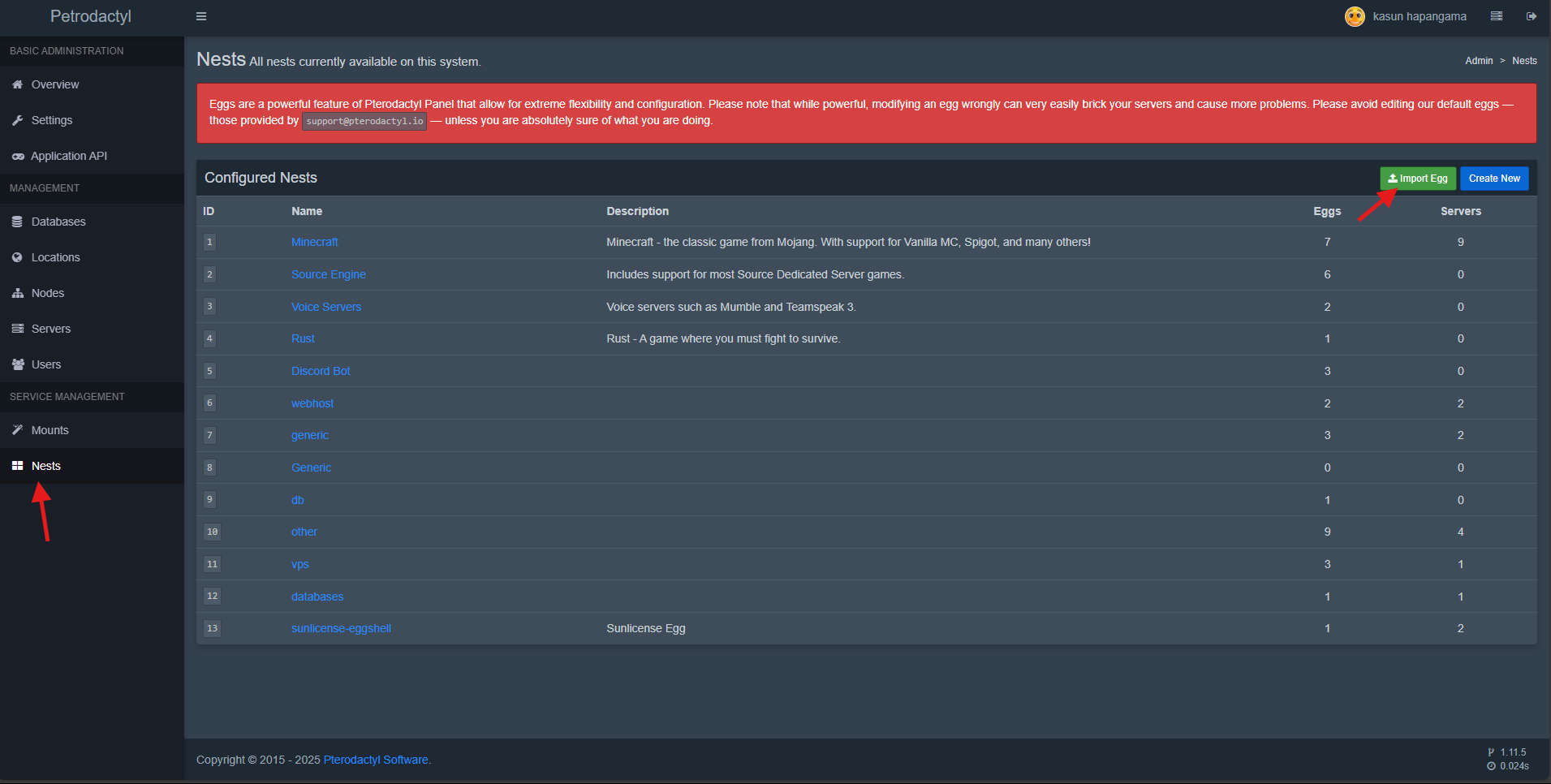
Navigate to Nests
In the Service Management section, select Nests.
4
Import the egg
Click the green Import Egg button and upload the egg file.
Step 4: Create and start a server
1
Go to the Servers section
Navigate to the Servers section in your Pterodactyl panel and click Create Server.
2
Configure server resources
SunPaste typically requires these minimum resources:
- CPU Cores: 1 Core
- RAM: 1 GB
- Storage: 2 GB
3
Select the egg
Choose the egg you imported in the previous step.
4
Upload server.jar
Go to the Files tab of the new server and upload
server.jar.5
Create license.txt
- Create a file called
license.txtnext toserver.jar. - Paste the license key you received in Step 2.
- Save the file and start the server.
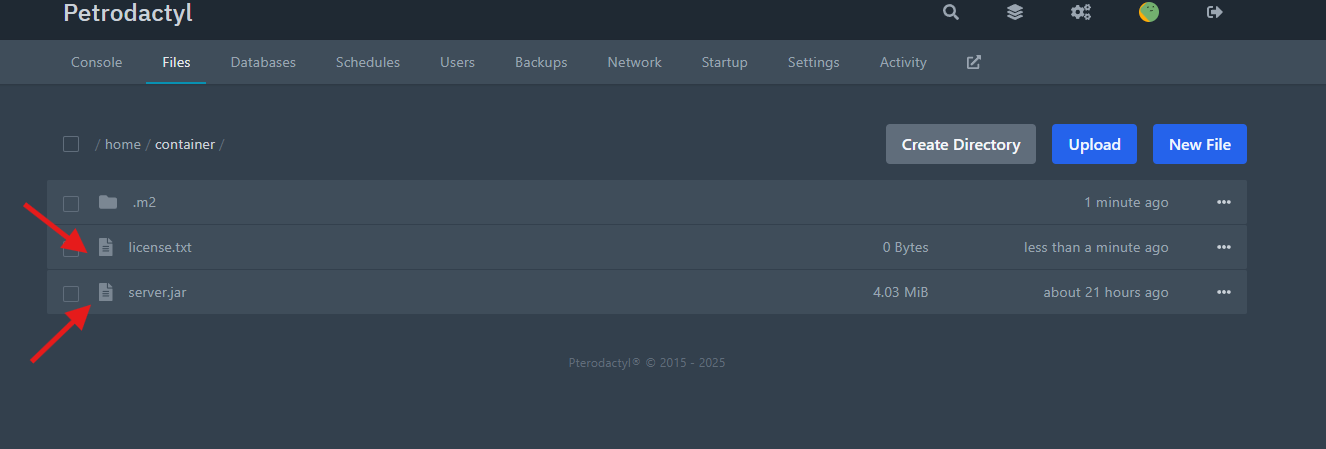
On the first start, the SunPaste server automatically downloads the required dependencies. This can take several minutes, and a folder named
.m2 will be created. Wait until the process is complete.Step 5: Access the SunPaste dashboard
1
Visit your server address
Open
http://{serverip}:{port} in your browser, replacing {serverip} and {port} with your server’s IP address and port.2
Log in
Use the default credentials:
- Username:
admin - Password:
admin
3
Update your credentials
Go to the Settings page and change the default credentials.